keyboard Essential Keyboard Shortcuts
Mastering keyboard shortcuts can dramatically speed up your Windows workflow. Here are the must-know combinations every Windows 10 user should memorize:
Windows + D: Show desktop (minimize all windows instantly)Windows + E: Open File ExplorerWindows + I: Open SettingsWindows + L: Lock your computerWindows + Tab: Open Task View (see all open windows and virtual desktops)
Windows + Shift + S: Take a screenshot with Snip & SketchWindows + V: Open clipboard historyAlt + Tab: Switch between open applicationsWindows + Arrow Keys: Snap windows to different screen positionsCtrl + Shift + Esc: Open Task Manager directly
For a complete list of Windows 10 keyboard shortcuts, see Microsoft's official keyboard shortcuts guide.
view_carousel Virtual Desktops for Better Organization
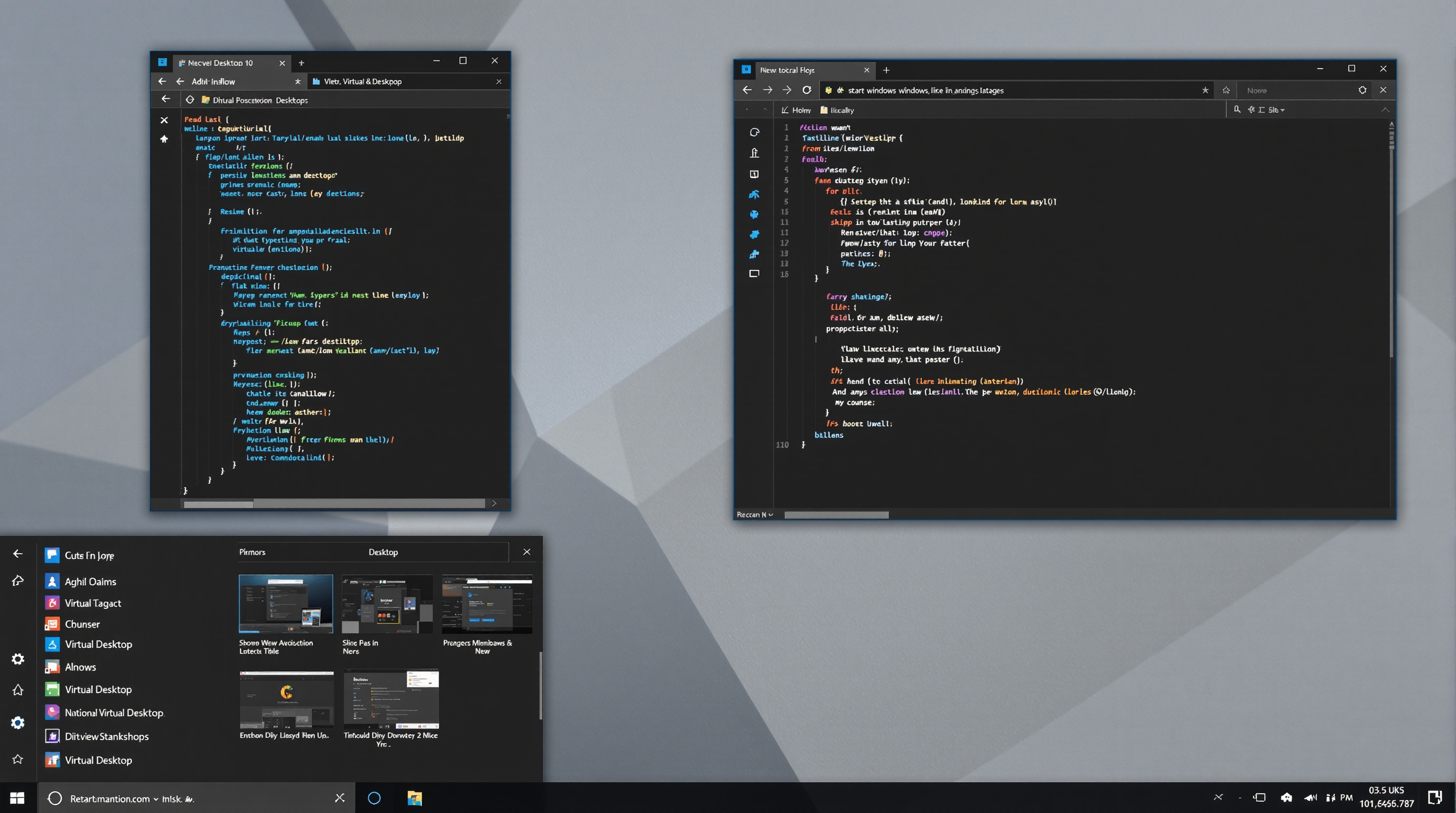
One of Windows 10's most powerful but underutilized features is Virtual Desktops. This allows you to create multiple desktop workspaces for different tasks, helping you stay organized and focused.
info How to use Virtual Desktops:
- check_circlePress Windows + Tab to open Task View
- check_circleClick "New Desktop" to create additional desktops
- check_circleSwitch between desktops using Windows + Ctrl + Left/Right Arrow
- check_circleDrag applications between desktops to organize your workflow
lightbulb
Pro Tip: Try organizing your desktops by task type - for example, one for work applications, another for communication tools, and a third for personal browsing.
dashboard Customize Your Start Menu
The Windows 10 Start Menu is highly customizable. Right-click on any tile to resize it, unpin it, or turn off live tiles. You can create groups of related applications by dragging tiles together, then naming the group for easy access.
To streamline your Start Menu, remove apps you don't use and pin your most-used programs. A well-organized Start Menu can save you dozens of clicks every day.
do_not_disturb_on Focus Assist for Distraction-Free Work
Focus Assist (formerly Quiet Hours) helps you work without interruptions by controlling notifications. Access it from the Action Center or Settings > System > Focus Assist.
You can set automatic rules to enable Focus Assist during specific hours, when you're presenting, or when you're gaming. Configure priority notifications so important alerts still come through while others are silenced.
folder_open File Explorer Power Tips
File Explorer has several hidden capabilities that power users love:
starQuick Access
Pin frequently-used folders for instant access
searchSearch Filters
Use "kind:" filters (kind:document, kind:music) to narrow searches
check_boxFile Checkboxes
Enable item checkboxes in View settings for easier multi-file selection
dark_modeDark Mode
Windows 10 supports dark mode - enable it in Settings > Personalization
search Windows Search Tips
The Windows Search box (Windows + S) is incredibly powerful. Beyond searching for files and apps, you can:
- calculatePerform calculations (type "2+2" and get instant results)
- swap_horizConvert units (type "50 km to miles")
- settingsSearch settings directly
- bookFind definitions (type "define" followed by a word)
- local_shippingTrack packages and flights
admin_panel_settings God Mode: Ultimate Control Panel
Windows 10's "God Mode" provides access to all system settings in one place. To enable it:
- Create a new folder on your desktop
- Rename it to:
GodMode.{ED7BA470-8E54-465E-825C-99712043E01C}
- The folder icon will change, and opening it reveals all Windows settings
This gives you centralized access to hundreds of system settings and tools, perfect for power users and troubleshooters.
tips_and_updates Additional Tips
content_pasteClipboard History
Windows 10 now includes clipboard history. Enable it in Settings > System > Clipboard, then use Windows + V to access your clipboard history and pin frequently-used items.
nightlightNight Light for Better Sleep
The Night Light feature reduces blue light emissions in the evening, which can help improve sleep quality. Configure it in Settings > System > Display to automatically activate at sunset.
securityWindows Sandbox for Safe Testing
Windows 10 Pro and Enterprise include Windows Sandbox - a temporary, isolated environment for testing software safely. Any changes made in the sandbox are discarded when you close it, making it perfect for trying potentially risky programs.
terminalPowerShell Automation
PowerShell ships with Windows 10 and allows you to automate repetitive tasks through simple scripts. Batch-rename files, schedule backups, or monitor system health without installing third-party tools. Open PowerShell from the Start Menu and run Get-ComputerInfo for a quick system summary, or try Get-Process | Sort-Object CPU -Descending | Select -First 10 to see your most CPU-intensive processes.
storageStorage Sense
Enable Storage Sense in Settings > System > Storage to automatically free up disk space. Windows 10 can remove temporary files, empty the Recycle Bin on a schedule, and clean up old downloads without manual intervention. Configure it to run monthly and you will rarely need to perform manual disk cleanup again.
settings_backup_restoreCloud Clipboard and Settings Sync
The same Clipboard settings page can sync clipboard history across devices signed in to the same Microsoft account, which is genuinely useful when you move between a desktop and a laptop. Treat it with some care, though: anything you copy — including passwords pasted out of a manager — leaves the local machine. On shared or work devices, leave sync off and use Windows + V purely as a local history.
scheduleTask Scheduler for Routine Maintenance
Rather than remembering to run maintenance by hand, schedule it. Task Scheduler can trigger a weekly disk cleanup, a defragmentation pass on mechanical drives, or a PowerShell script that exports event-log errors to a file you actually read. Create a basic task, set a weekly trigger for a time the machine is on but idle, and point it at the action. Ten minutes of setup replaces a habit you were never going to keep.
securityUsing Windows 10 After Support Ends
Keyboard shortcuts and desktop customization address everyday use; the support deadline is a separate consideration. Windows 10 reached end of support on October 14, 2025. Your computer continues to function, but Microsoft no longer provides standard technical assistance, feature updates or security updates. Microsoft's Windows 10 support notice explains that continuing without software and security updates increases the risk from viruses and malware.
The consumer Extended Security Updates program offers critical and important security updates through October 12, 2027. Eligible devices must run Windows 10 version 22H2 Home, Professional, Pro Education or Workstations with the latest Windows update installed. ESU does not include feature improvements, other fixes or technical support. Treat it as a limited security-update option when considering how long to keep using Windows 10, rather than assuming it restores the full support that ended.
If you are still running Windows 10, our guide to Windows 10 end of support and Extended Security Updates explains what changed and what your options are.